Crop Images Precisely
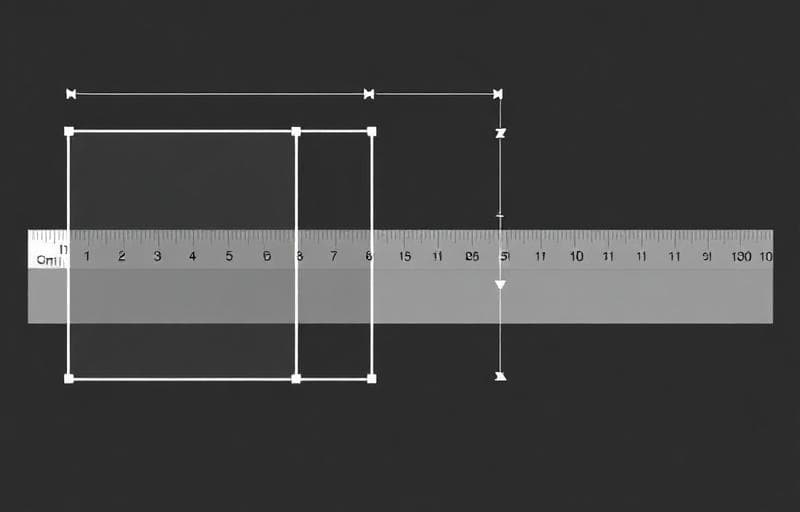
Cropping removes unwanted areas from an image, letting you focus on what matters.
How to Crop with Fluranto
When to Crop
- Remove distractions from the background
- Focus on the subject in a wider shot
- Match aspect ratios for social media platforms
- Create thumbnails from larger images
- Fix composition after the fact
Crop vs Resize
| Action | What It Does | When to Use |
|---|---|---|
| Crop | Cuts out a portion | Remove unwanted areas |
| Resize | Scales entire image | Change dimensions |
Yes — enter exact width and height values for pixel-perfect crops.
Does cropping reduce quality?No — cropping preserves the original resolution of the selected area.
Can I undo a crop?Upload the original image again and re-crop. Fluranto doesn't modify your original file.
Probar Recortar imagen
Recorta imágenes a dimensiones personalizadas.
crop
image
aspect ratio
composition