Resize Images to Any Size
Whether you need a 1080×1080 Instagram post or a 1200×630 OG image, resizing is one of the most common image tasks.
How to Resize with Fluranto
Common Social Media Sizes
| Platform | Size | Use |
|---|---|---|
| Instagram Post | 1080×1080 | Square feed post |
| Instagram Story | 1080×1920 | Story/Reel cover |
| Twitter/X Post | 1200×675 | Timeline image |
| Facebook Cover | 820×312 | Page cover photo |
| LinkedIn Banner | 1584×396 | Profile banner |
| OG Image | 1200×630 | Link preview |
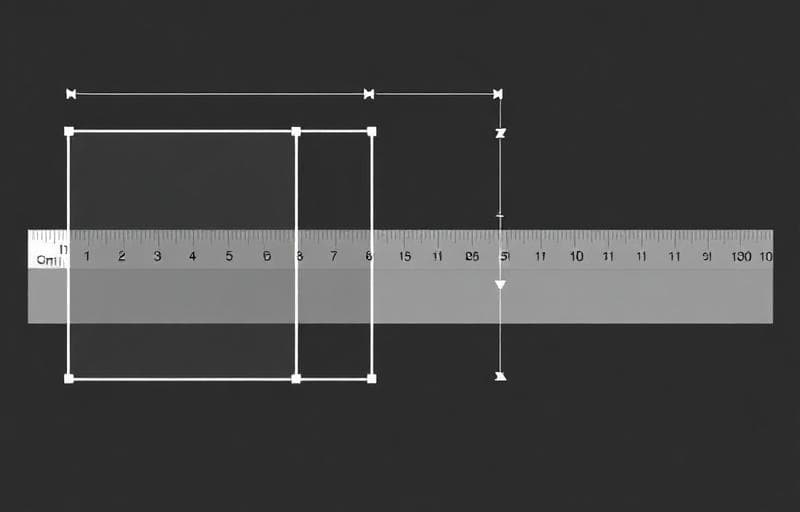
- Resize changes the entire image dimensions (may stretch if aspect ratio differs)
- Crop cuts a portion of the image to fit exact dimensions
FAQ
Does resizing reduce quality?Downscaling (making smaller) preserves quality. Upscaling (making larger) can cause blurriness — avoid enlarging more than 2×.
Can I resize without changing aspect ratio?Yes — toggle the lock icon to maintain the original ratio. Only enter width or height, and the other adjusts automatically.
What formats are supported?JPG, PNG, WebP, and most standard image formats.
Can I resize multiple images at once?Yes — Fluranto supports batch upload for resizing multiple images simultaneously.
Try Resize Image
Change image dimensions to any size.
resize
dimensions
scale
social media