Transform Your Screenshots
Turn raw screenshots into beautiful, shareable visuals in seconds.
How to Use
What Makes It Special
- 12+ gradient presets — one-click beautiful backgrounds
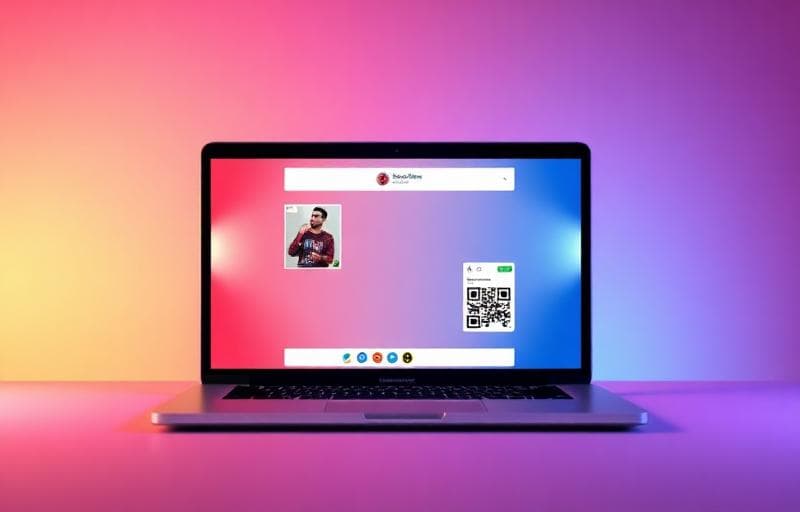
- Device frames — browser, phone, laptop mockups
- Captions — add titles below your screenshot
- Watermarks — brand your images
- High-res export — up to 3x for retina displays
Use Cases
- Social media posts — stand out with polished visuals
- Product documentation — professional-looking guides
- Portfolio/case studies — showcase your work beautifully
- Presentations — impress with clean screenshots
FAQ
What screenshot sizes work best?Any size works — the tool adjusts. For best results, capture at high resolution.
Can I batch process screenshots?Currently one at a time. Save your settings for consistent results across multiple screenshots.
Is there a watermark?No forced watermark. You can optionally add your own custom watermark.
Try Screenshot Beautifier
Add backgrounds, shadows, and rounded corners to make screenshots look stunning.
screenshot
beautify
design
social media